Loading PremLeaguePass...
Apple TV Sports Streaming Setup 2026: Complete IPTV Guide
2026-01-08T09:30:00.000Z•UK•5 min read
In this guide
Apple TV: Premium Sports Streaming
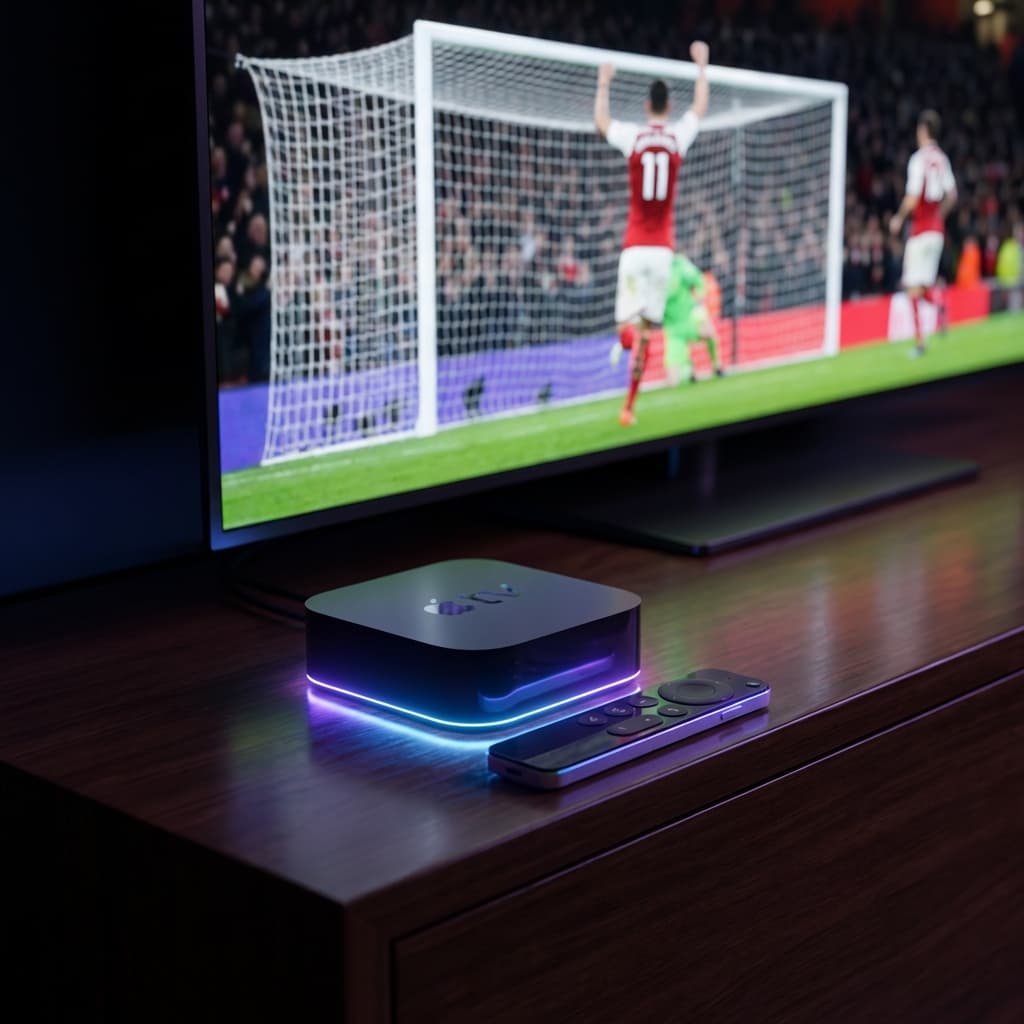
Apple TV 4K is one of the best devices for sports streaming. With powerful hardware, excellent 4K support, and a premium user experience, it's the perfect choice for serious sports fans who demand quality.
This comprehensive guide shows you exactly how to set up IPTV sports streaming on Apple TV 4K, including the best apps, optimal settings, and troubleshooting tips.
Why Choose Apple TV for Sports?
Hardware Advantages
- A15 Bionic chip (2022 model) - Handles 4K 60FPS effortlessly
- HDMI 2.1 - Full 4K HDR support
- WiFi 6 - Fast, stable wireless streaming
- Gigabit Ethernet - Wired connection option for best quality
Software Advantages
- tvOS - Smooth, intuitive interface
- App Store - Wide selection of IPTV apps
- AirPlay - Stream from iPhone/iPad
- HomeKit integration - Smart home control
Quality Advantages
- 4K HDR - Stunning picture quality
- Dolby Atmos - Immersive surround sound
- 60FPS support - Smooth sports action
- Adaptive streaming - Automatically adjusts to connection speed
Best IPTV Apps for Apple TV
1. IPTV Smarters Pro (Recommended)
Price: Free (with ads) or £4.99/year
Features:
- Clean, Apple-like interface
- EPG support
- Catch-up TV
- Parental controls
- 4K streaming
Setup:
- Download from App Store
- Open and select "Add User"
- Enter PremLeaguePass Xtream Codes credentials
- Start watching
2. GSE Smart IPTV
Price: £4.99 (one-time)
Features:
- Advanced EPG
- Recording support
- Chromecast support
- Multiple playlist support
3. IPTV Player
Price: Free
Features:
- Simple interface
- M3U playlist support
- Basic EPG
Complete Setup Guide
Step 1: Prepare Your Apple TV
- Update tvOS to latest version (Settings > System > Software Updates)
- Check internet speed (should be 50Mbps+ for 4K)
- Connect Ethernet if possible (Settings > Network)
Step 2: Install IPTV Smarters Pro
- Open App Store on Apple TV
- Search for "IPTV Smarters Pro"
- Download and install
- Open the app
Step 3: Add Your PremLeaguePass Subscription
- Select "Add User"
- Choose "Login with Xtream Codes API"
- Enter your credentials:
- Server URL: (provided by PremLeaguePass)
- Username: (your username)
- Password: (your password)
- Select "Add User"
Step 4: Configure Settings
- Go to Settings in app
- Enable Hardware Acceleration
- Set Buffer Size to 20-30 seconds
- Enable EPG Auto-Update
- Set Video Quality to "Auto" or "4K"
Step 5: Organize Your Channels
- Browse to "Live TV"
- Add favourite channels (press and hold on channel)
- Create groups for different sports
- Hide unwanted channels
Optimal Apple TV Settings for Sports
Video Settings
Settings > Video and Audio:
- Match Content - Enable (for proper frame rate)
- Match Dynamic Range - Enable (for HDR)
- Chroma - 4:4:4
- HDMI Output - YCbCr
Audio Settings
- Audio Format - Auto (or Dolby Atmos if supported)
- Audio Mode - Auto
- Reduce Loud Sounds - Off (for authentic stadium atmosphere)
Network Settings
- Use Ethernet if available (Settings > Network)
- WiFi - Connect to 5GHz band (not 2.4GHz)
- DNS - Use automatic or Google DNS (8.8.8.8)
Using AirPlay for Sports
Stream from iPhone/iPad
- Open IPTV app on iPhone/iPad
- Start playing a match
- Tap AirPlay icon
- Select your Apple TV
- Match appears on TV
Pro Tip: Use your iPhone as a remote control while streaming to Apple TV.
Multi-Device Viewing
Apple TV integrates perfectly with other Apple devices:
Picture-in-Picture
- Start watching on Apple TV
- Swipe up to home screen
- Match continues in corner
- Browse other apps while watching
Handoff
- Start watching on iPhone
- Bring iPhone near Apple TV
- Notification appears on TV
- Continue watching on big screen
Troubleshooting Common Issues
Buffering During Matches
Solutions:
- Switch to wired Ethernet connection
- Lower stream quality to 1080p
- Restart Apple TV (Settings > System > Restart)
- Close background apps
App Crashes
Solutions:
- Force quit app (double-tap TV button, swipe up)
- Update app to latest version
- Restart Apple TV
- Reinstall app
No Sound
Solutions:
- Check HDMI cable connection
- Verify TV audio settings
- Try different audio format in Apple TV settings
- Restart both Apple TV and TV
EPG Not Loading
Solutions:
- Check internet connection
- Manually refresh EPG in app settings
- Wait 15 minutes for full load
- Re-enter EPG URL
Apple TV Models Comparison
Apple TV 4K (2022) - 3rd Gen
Price: £149 (64GB) / £169 (128GB)
- Best choice for sports streaming
- A15 Bionic chip
- HDR10+, Dolby Vision
- Thread support
Apple TV 4K (2021) - 2nd Gen
Price: £129 (refurbished)
- Still excellent for 4K sports
- A12 Bionic chip
- HDR10, Dolby Vision
- Good value
Apple TV HD (2015)
Price: £89 (refurbished)
- Not recommended for 4K sports
- Limited to 1080p
- Older processor
Recommendation: Get the 2022 model for best performance, or 2021 model for value.
Beyond Sports: What Else Can You Watch?
Your PremLeaguePass subscription includes:
- Premier League (all 380 matches in 4K)
- Champions League, La Liga, Serie A
- UFC and Boxing PPV
- NFL, NBA, NHL, F1
- 25,000+ live channels
- 100,000+ VOD titles
All optimized for Apple TV 4K.
Try Before You Buy
Test PremLeaguePass on your Apple TV with a 24-hour starter plan:
- Full access to all channels
- 4K 60FPS quality
- Technical support
Get Started Today
- Start Your Get Started
- View Pricing Plans - From £15/month
- Contact Support
Transform your Apple TV into the ultimate sports streaming device. Join PremLeaguePass today.
Related Guides

Best IPTV Player Apps 2026: TiviMate vs Smarters vs OTT Navigator
Comprehensive comparison of the best IPTV player apps in 2026. Find out which app is best for your device with detailed feature breakdowns and setup guides.

Is Your ISP Slowing Down Football? How to Bypass Throttling (2026)
>-
Sky Glass Review 2026: The Hidden Costs vs IPTV
>-